





How Zoom accelerated training video production by 90%
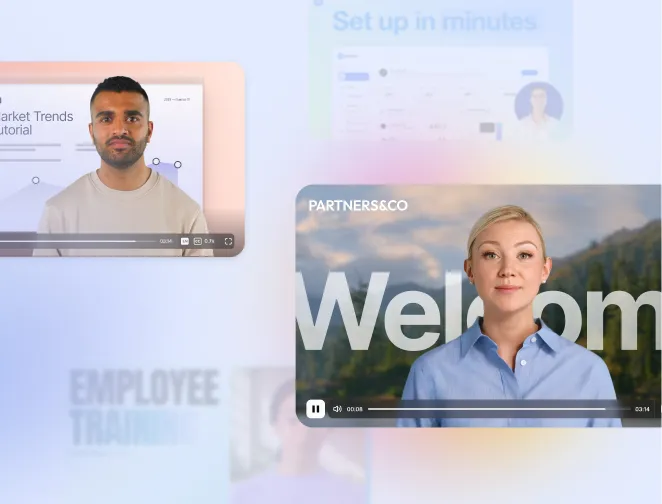
Learn how Zoom uses AI video to train over 1,000 salespeople.

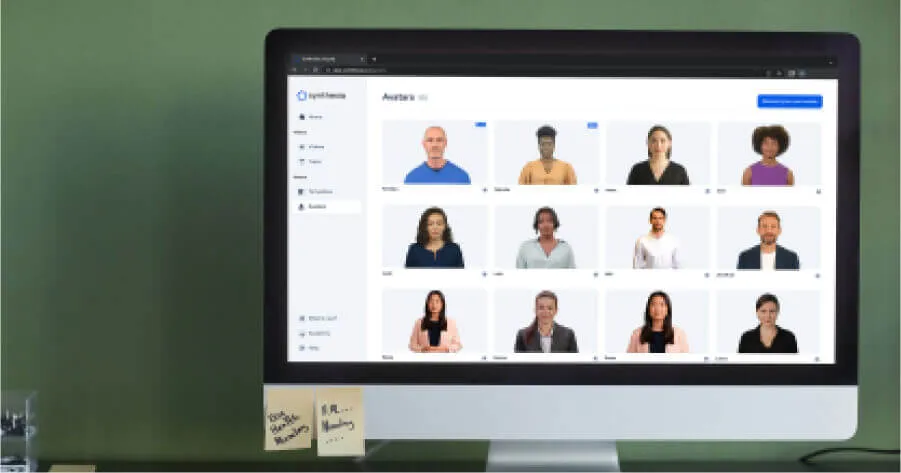
Create AI videos with 240+ avatars in 160+ languages.
Create interactive videos in 160+ languages
Synthesia's interactivity features allow you to turn passive videos into interactive experiences with Synthesia by adding clickable CTAs, branching paths, and in-video quizzes that guide viewers, check understanding, and track results.
Whether you are training teams or enabling customers, interactive video helps you personalize the journey, reduce drop-off, and measure impact with confidence.
Customizable, choice-driven training videos that let learners interact with clickable paths and decisions. Ideal for onboarding, compliance, and upskilling, and easy to embed across devices and workflows.
Calm, beige-toned layout designed for soft skills and focused learning. Combines clean visuals, avatar guidance, and subtle interactivity for distraction-free training.
Dark, modern corporate design for onboarding, company profiles, and executive presentations. Perfect for sales and marketing teams who want to showcase their brand with impact.
Guided, clickable product walkthroughs that let viewers explore features at their own pace. Great for demos, onboarding, and feature education in a highly engaging format.
Bright, dynamic quiz-style videos that make internal communication more engaging. Ideal for training, announcements, and knowledge checks that keep teams involved.
Vibrant, modern learning layout with bold colors, avatars, and interactive elements. Perfect for internal training, onboarding, and quick refreshers in a tech-forward style.
Click here to log in or to sign up for a free account.
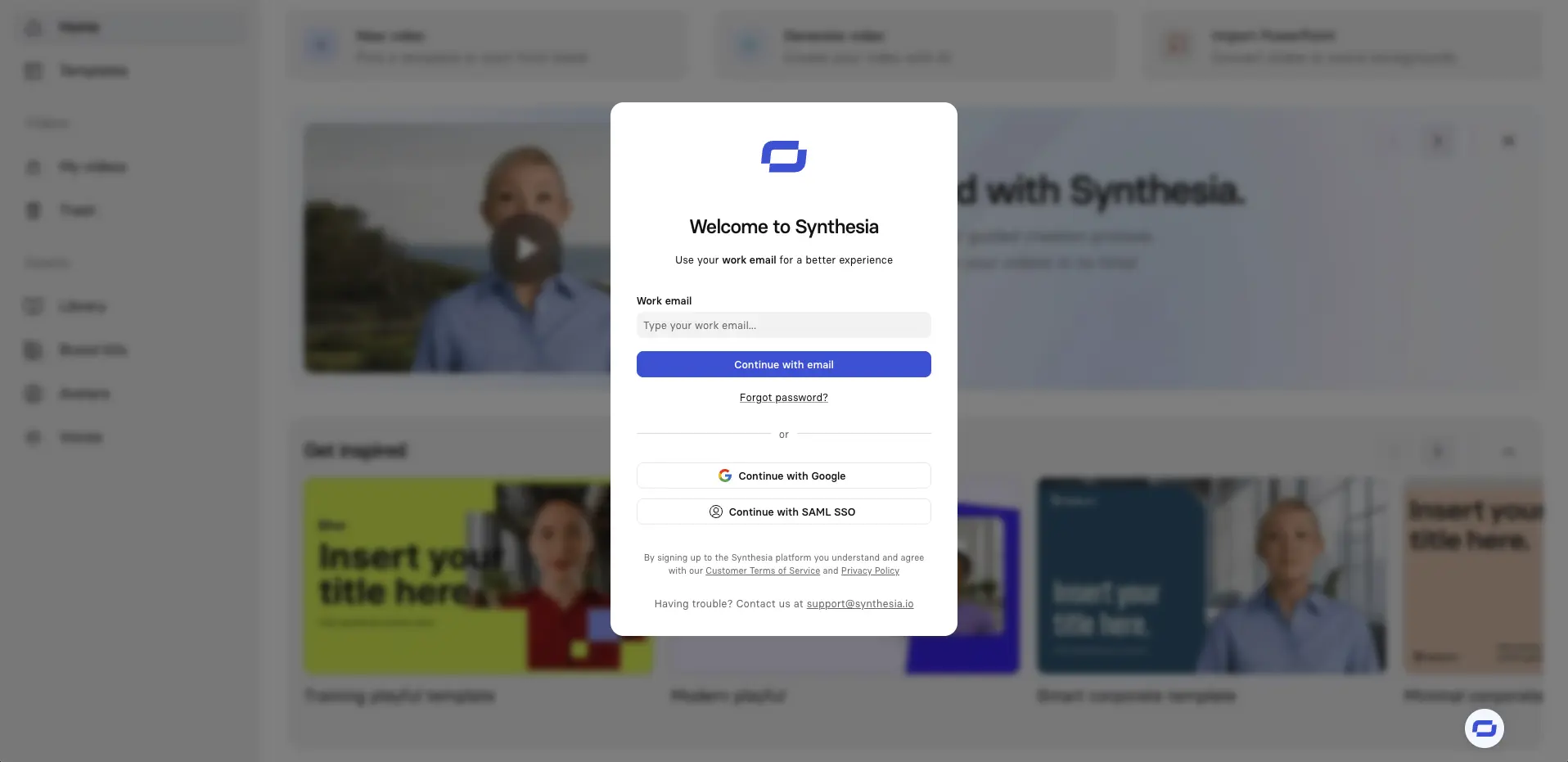
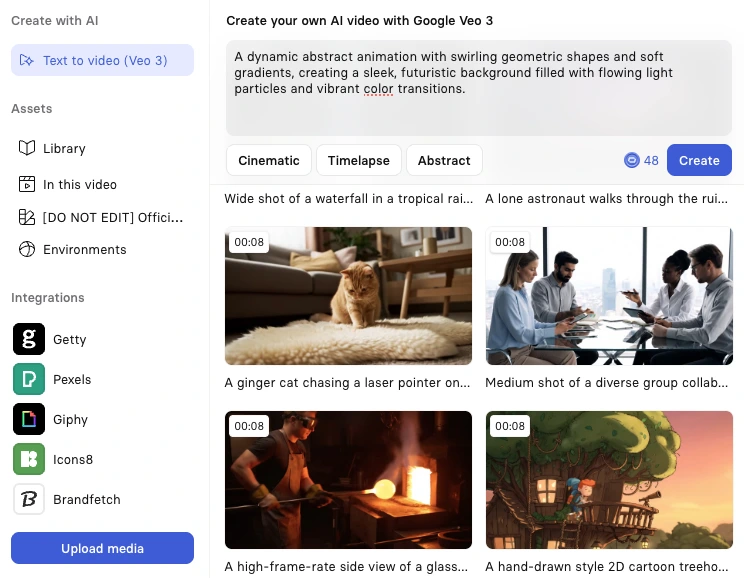
You can start creating a video from scratch, but the easiest way to create an interactive video is via the 'Create with AI option'.

The 'Create with AI' option lets you generate an interactive video from a simple text prompt.
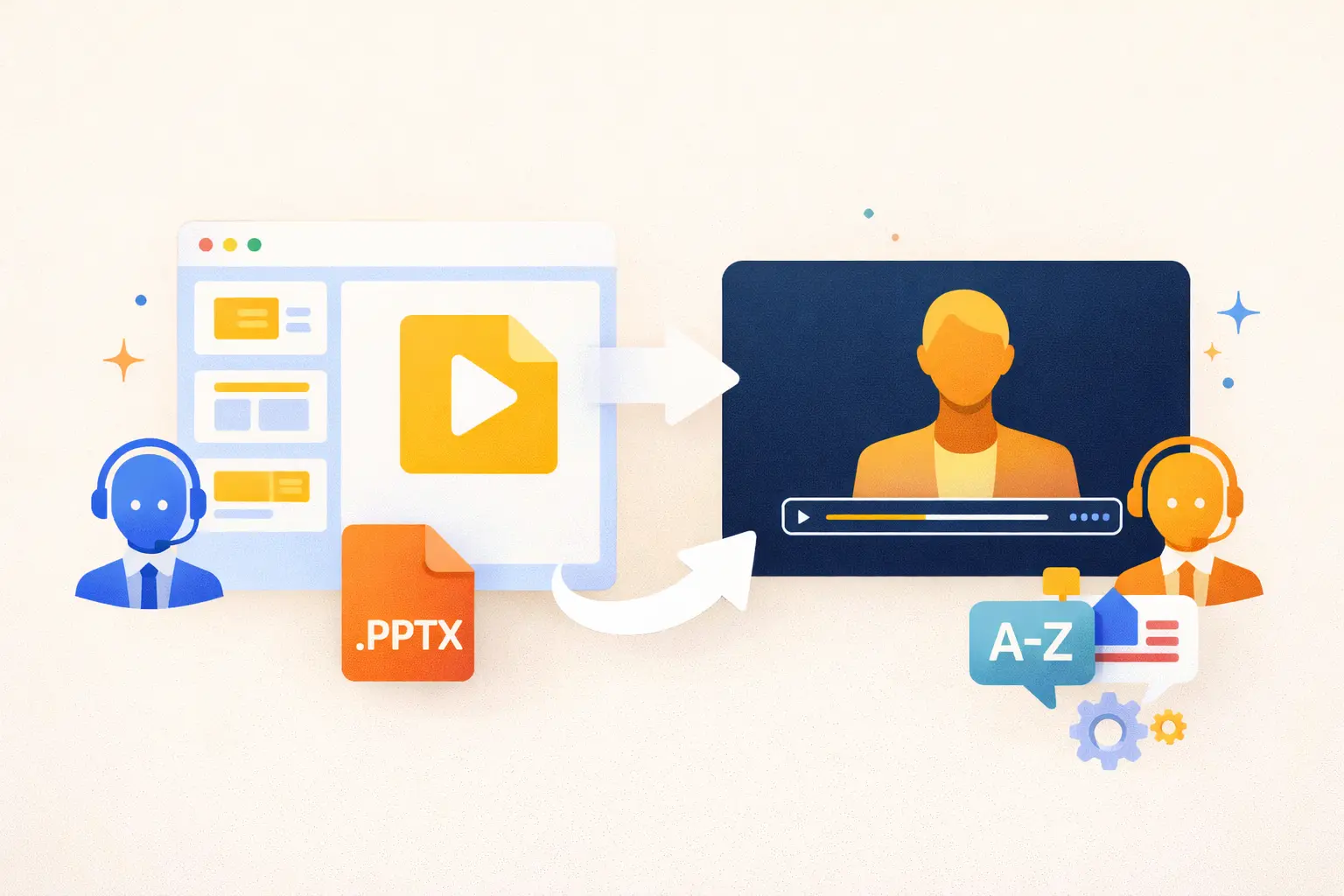
You can convert existing documents (like PDFs, Word docs, URLs, or PowerPoints,) into interactive videos. You can also paste a video script.
Next, select a template that matches your video style and adjust settings such as video duration, objective, and language.
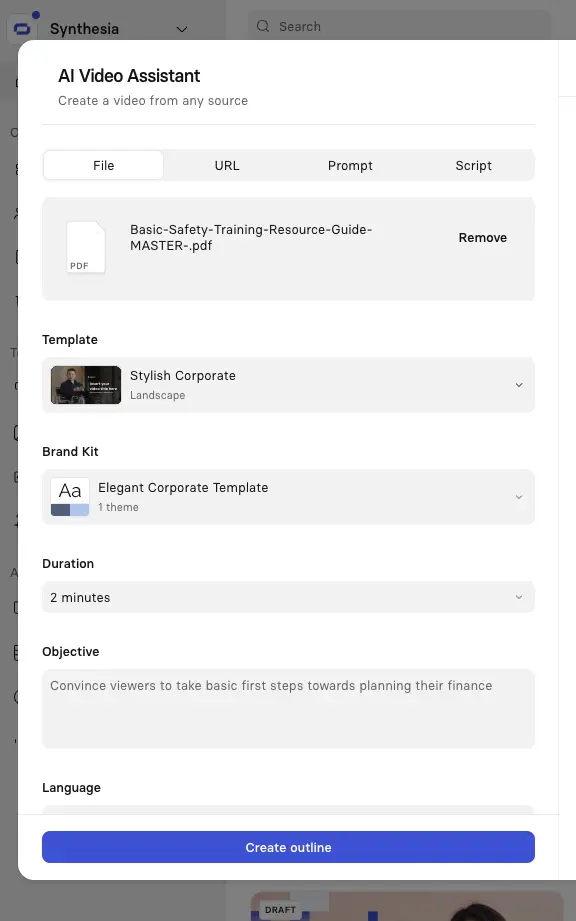
You’ll now see an overview of your video’s scenes along with a draft script for each one.
From here, you can add, remove, or edit scenes, or recreate the outline entirely. When you’re ready, click Continue in editor.
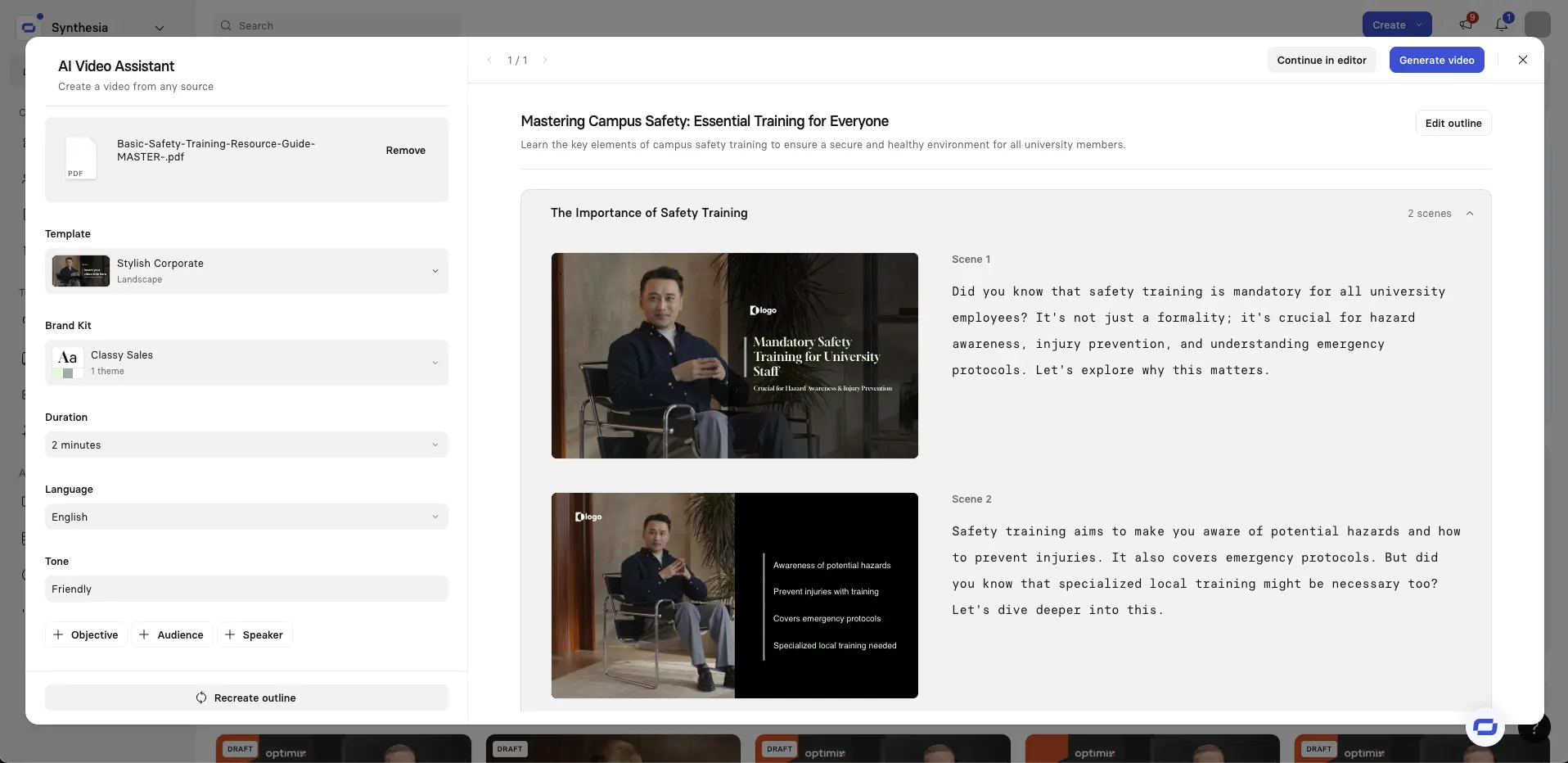
Now it's time to edit your video. You can review your scenes, refine the script, and assemble all multimedia elements into a complete video.
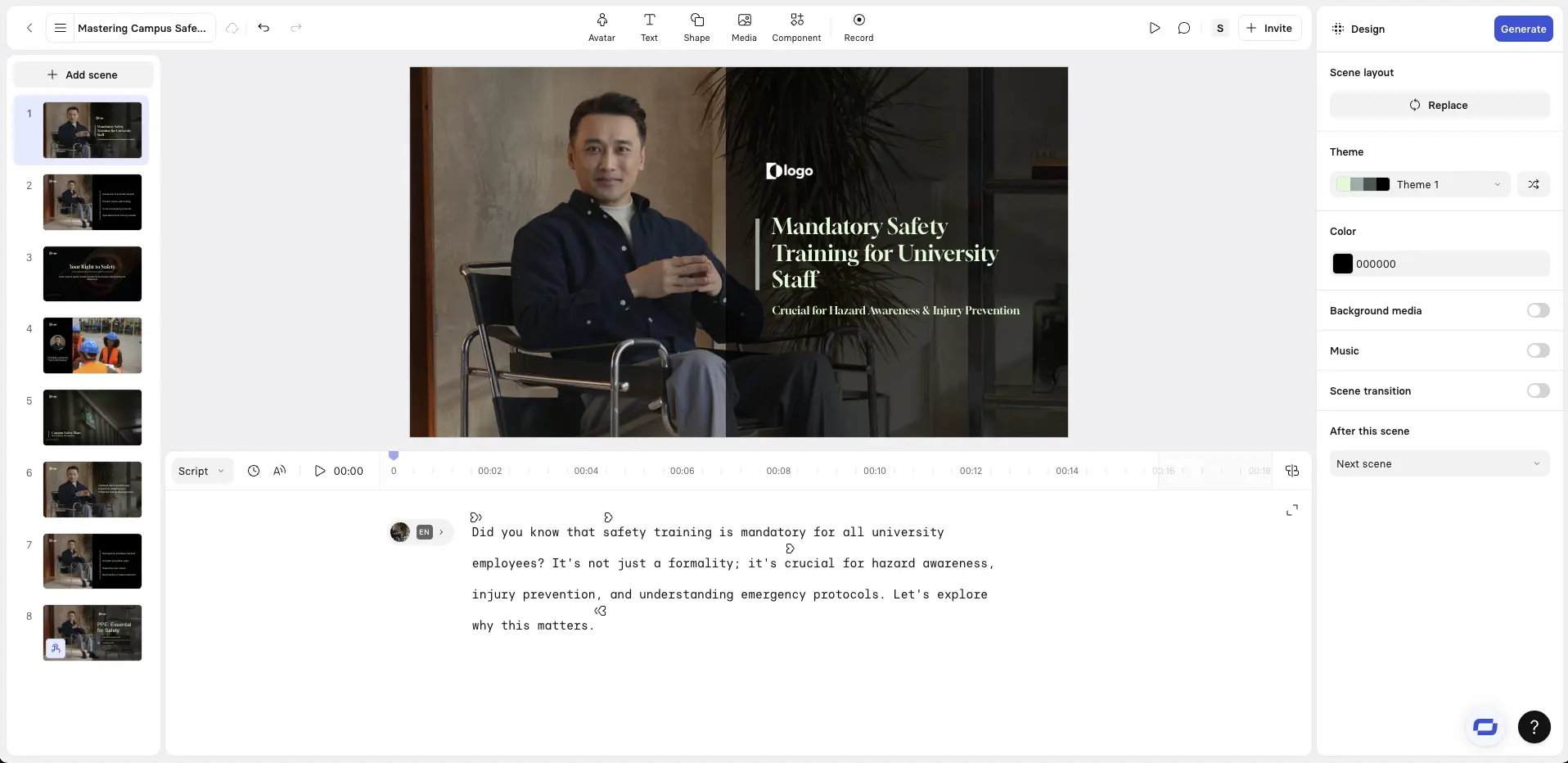
You can select from a wide range of AI avatars, AI voices, languages, and accents to match your audience and context.
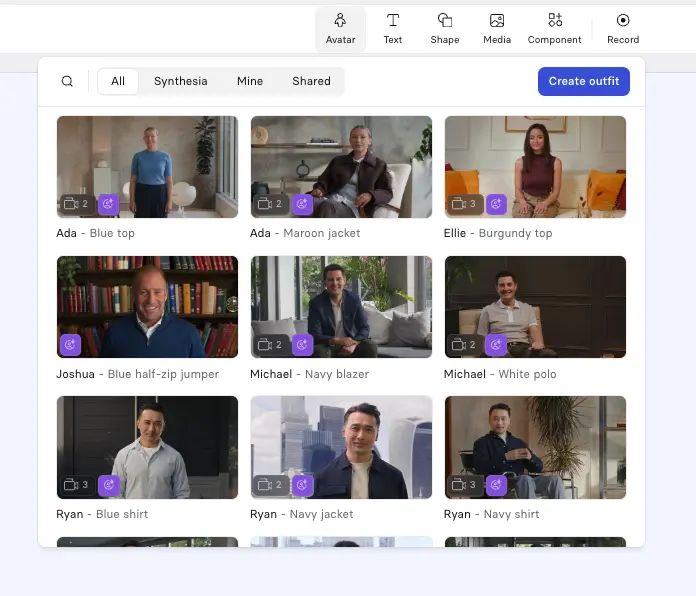
Use Synthesia’s AI screen recorder for software tutorials and walkthroughs. A common layout pairs a talking-head avatar with a screen recording, with the avatar on one side and the screen on the other.
B-roll helps break up long talking-head sections and keeps videos visually engaging. In Synthesia, you can place clips between sections or layer them behind your avatar or voiceover to reinforce key points.
B-roll works well for showing real-world examples, people performing tasks, or visuals that support the narration. You can generate clips with AI video models like Sora or Veo, upload your own footage, or use Synthesia’s built-in stock library.
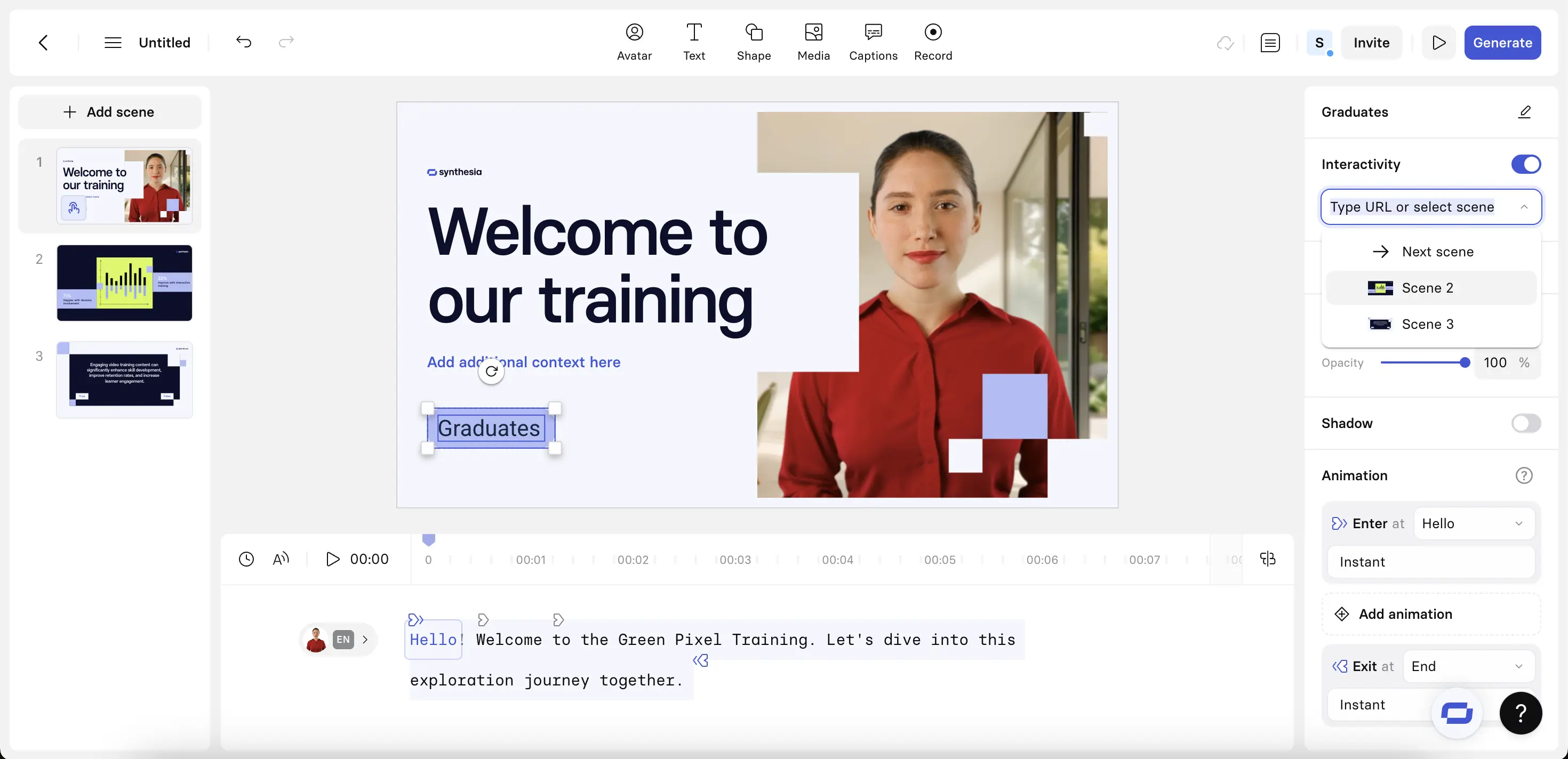
This is where the video turns from a passive watch-and-learn experience into something engaging and clickable. Synthesia gives me a few ways to add these interactive moments.
Click on a button and then look for the inspector panel on the right to find the interactivity options. You can send the viewer to a URL:
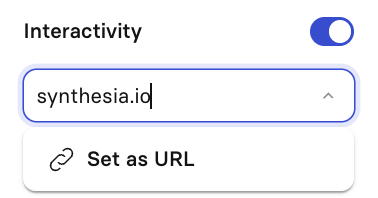
Or jump to a scene:
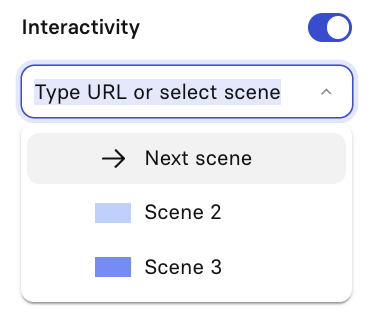
I recommend keeping the button text short, clear, and action-led.
I like to use these to make my videos feel like a guided journey.
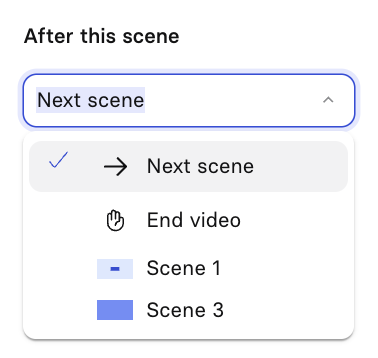
At the end of each branch, I include a button that returns viewers to the core flow or leads them to a closing CTA.
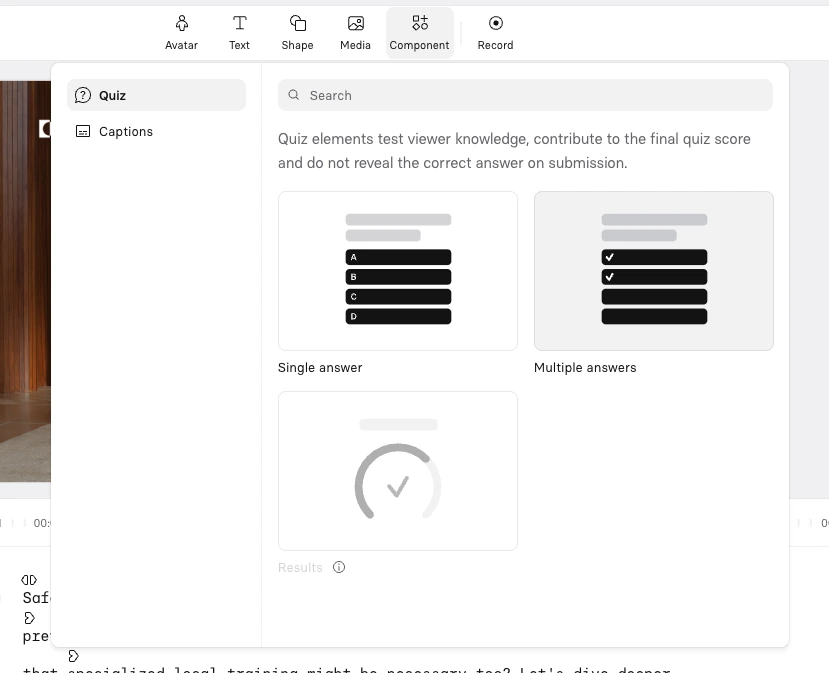
Adding interactive questions to your video to is a nice way to test knowledge or collect feedback. To add an interactive question, select components at the top of the page. Questions can be single or multiple answer format.
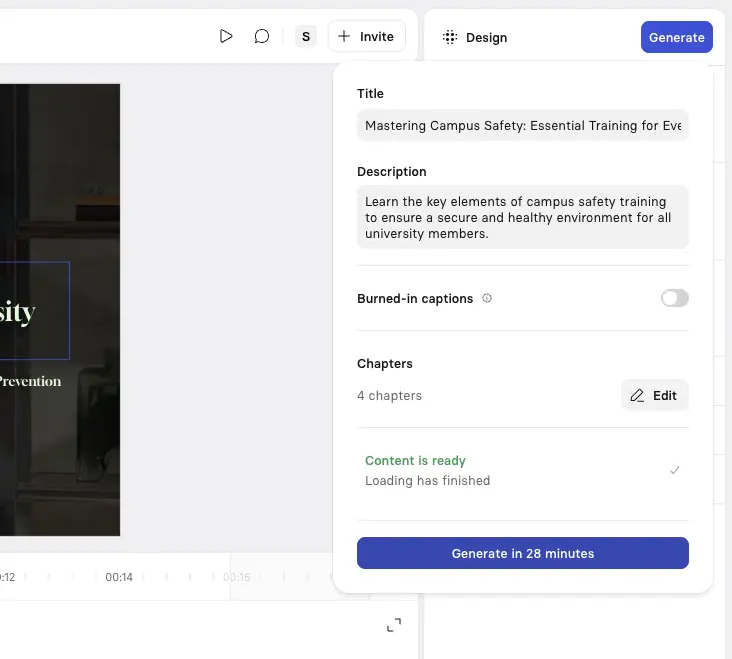
Click Generate in the top-right corner to create your interactive video.You can then get a shareable link or embed your video on a webpage, or download a SCORM version of your video and upload it to your LMS.
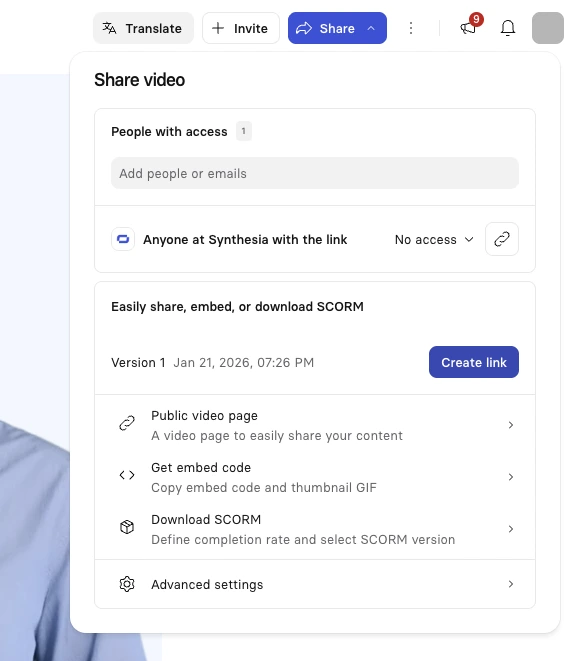
The final step is to publish and share your video. Most teams distribute interactive videos through an LMS, company intranet, or internal communications channels.
Once finished, generate and publish the video. You can then view your analytics like views, watch time, completion rates, question attempts, pass rates, and click-through rates.
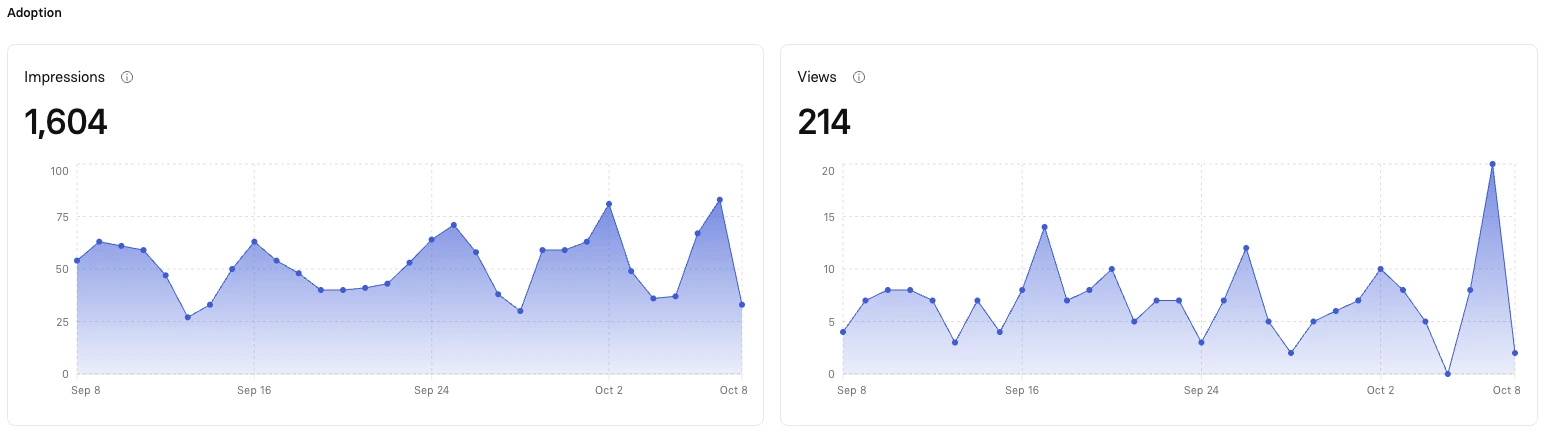
Video analytics allow you to measure how views interact with your videos and identify ways to improve engagement and retention of information.
Launch with a clear measurement plan. Track interaction rates, completion rates, and knowledge check scores. Use this data to identify drop-off points and optimize future versions.
Focus on metrics that matter:
With Synthesia's video analytics and SCORM export features, you can track completion and quiz scores in your LMS while monitoring in-video interactions directly in Synthesia.
Interactive videos are videos that accept user input—clicks, choices, quizzes, or forms—so viewers can influence what they see next. Think of them as the difference between watching a lecture and participating in a workshop. You're not just consuming content; you're actively engaging with it.
Unlike traditional videos limited to play, pause, and skip controls, interactive videos offer:
You can use interactive videos for product demos, training, education, and simulations.
But here's what matters most: interactive videos support active learning and improve comprehension, making them particularly valuable for L&D teams, sales enablement, and customer education.
Creating effective interactive videos means understanding which elements serve your objectives. In my work with L&D teams, I've seen how the right combination can transform completion rates from mediocre to exceptional. Here's what you can include:
In Synthesia, you can add buttons, hotspots, branching, quizzes, chapters, and CTAs directly in the editor.
Students report interactive videos as more enjoyable and effective for learning compared to passive content. Interactive video learners also outperformed those using standard online materials in a controlled medical education study.
But effectiveness goes beyond academic studies. I've seen teams report higher completion rates, better knowledge retention, and reduced compliance risk when shifting mandatory training to short, interactive modules.
One organization I worked with saw their completion rates jump from 85% to 97% in just three months after adding knowledge checks and branching scenarios.
The improvements don't stop there either – with interaction data like clicks, correct/incorrect answers, and drop-off points, you can easily identify knowledge gaps and iterate.
When completion rates are low, retention is poor, and engagement is dropping, adding interactivity can transform your results.
Whether you're creating sales training, compliance modules, or customer education, the principles remain the same: give viewers control, make it relevant, and measure what matters.
Start small. Pick one video that's underperforming and add a simple interactive element—maybe a knowledge check or branching scenario.
Test it with a small group, measure the results, and iterate.
About the author

Strategic Advisor
Kevin Alster
Kevin Alster is a Strategic Advisor at Synthesia, where he helps global enterprises apply generative AI to improve learning, communication, and organizational performance. His work focuses on translating emerging technology into practical business solutions that scale.He brings over a decade of experience in education, learning design, and media innovation, having developed enterprise programs for organizations such as General Assembly, The School of The New York Times, and Sotheby’s Institute of Art. Kevin combines creative thinking with structured problem-solving to help companies build the capabilities they need to adapt and grow.

Interactive videos are videos that accept user input through clicks, choices, quizzes, or forms, allowing viewers to influence what they see next. Unlike traditional videos limited to play, pause, and skip controls, interactive videos transform passive watching into active participation through elements like clickable hotspots, branching scenarios, knowledge checks, and embedded CTAs.
These videos are particularly valuable for training, education, and sales enablement because they support active learning and improve comprehension. Studies show that students using interactive videos perform significantly better on exams than those using standard online content, with organizations reporting completion rates jumping from 85% to 97% after adding interactive elements. By giving viewers control over their learning experience, interactive videos create more engaging, memorable content that drives better business outcomes.
In Synthesia, adding interactive elements is straightforward through the built-in editor. For buttons and CTAs, simply click on a button element and use the inspector panel on the right to set actions like sending viewers to a URL or jumping to another scene. For branching paths, create multiple scenes and connect them through button actions, allowing viewers to choose their own journey through the content.
To add knowledge checks, select "Components" at the top of the editor and choose from single or multiple answer question formats. You can position these questions at strategic points in your video to test understanding or collect feedback. The beauty of Synthesia's approach is that all these interactive features are native to the platform, eliminating the need for complex third-party integrations while giving you full analytics on how viewers interact with each element.
Yes, Synthesia makes it simple to transform your existing training materials into interactive videos. Through the AI Video Assistant, you can upload PDFs, Word documents, or PowerPoint presentations directly, or even paste a webpage URL. The AI analyzes your content and automatically generates a chapter-based script outline that you can edit before converting to video.
Once your content is in video format, you can enhance it with interactive elements like quizzes, branching scenarios, and clickable buttons. This approach is particularly powerful for organizations looking to modernize their training materials quickly. For example, teams have replaced static PDF training documents with engaging interactive modules, seeing dramatic improvements in completion rates and knowledge retention while saving 90% of the time typically required for video production.
Synthesia provides comprehensive analytics that go beyond basic view counts to show exactly how viewers engage with your interactive content. You can track completion rates, watch time, interaction rates (percentage of viewers clicking interactive elements), correct answer rates on knowledge checks, branch selections to understand learner preferences, and CTA click-through rates. These metrics help identify drop-off points and knowledge gaps so you can continuously improve your content.
The platform's analytics integrate with LMS systems through SCORM export, allowing you to track both completion and quiz scores in your existing learning management system while monitoring detailed interaction data in Synthesia. This dual approach gives you a complete picture of learning effectiveness. Focus on metrics that matter for your goals: if you're creating compliance training, prioritize completion rates and knowledge check scores; for sales enablement, track branch selections and scenario outcomes to understand how your team handles different situations.
Yes, Synthesia supports SCORM export for interactive videos, enabling seamless integration with your Learning Management System. This means you can track completion rates, quiz scores, and learning outcomes directly in your LMS while maintaining detailed interaction analytics within Synthesia. The SCORM compatibility ensures your interactive videos work with popular platforms like Moodle, Canvas, Cornerstone, and others.
This LMS integration is particularly valuable for organizations that need to demonstrate compliance or track employee training at scale. You get the best of both worlds: your LMS handles the administrative aspects like enrollment and certification, while Synthesia provides rich data on how learners actually engage with the content. This combination helps L&D teams identify knowledge gaps, optimize training paths, and prove the ROI of their interactive video initiatives through concrete engagement metrics.


VIDEO TEMPLATE
VIDEO TITLE

Try Synthesia with a free video.
Simply type in text and get a free video with an AI avatar in a few clicks. No signup or credit card required.